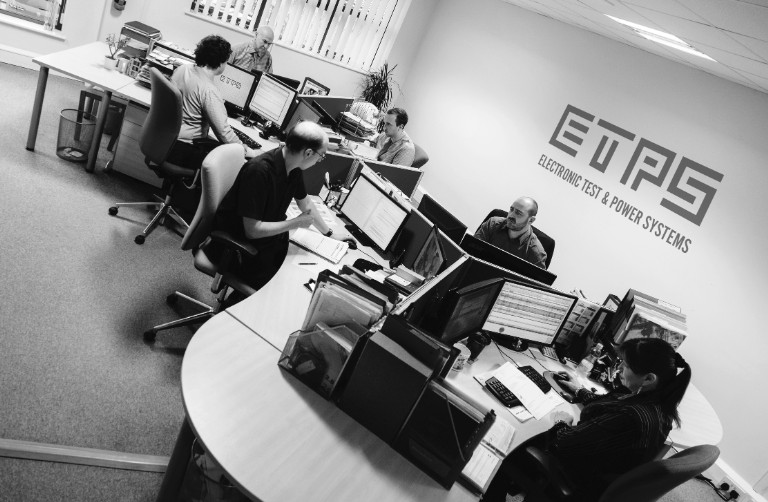
Our power systems provide the spark of innovation to the world's leading brands.
We Accelerate Innovation
Who we work with





Popular Products
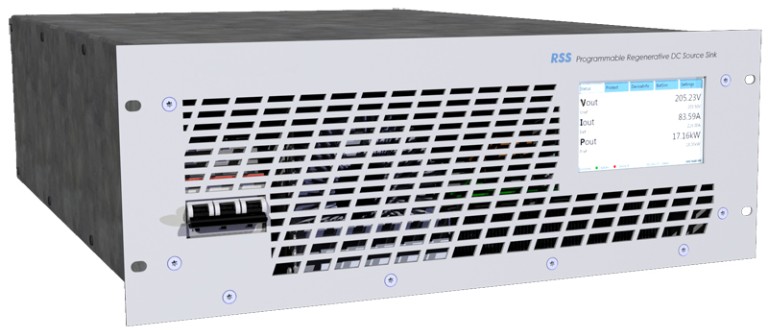
G5-RSS
HV Modular Bidirectional DC Power Systems
| Min | Max | |
|---|---|---|
| Power: | 0 to 9kW | 0 to 5MW This maximum is achieved by using units in master-slave. |
| Voltage: | 0 to 500VDC | 0 to 3000VDC Configurations >1500V are possible with a centre tapped earth. |
| Current: | 0 to ±54A | 0 to ±12960A This maximum is achieved by using units in master-slave. |
| Standard Control: | Analogue, Ethernet, USB |
|---|---|
| Optional Control: | Touchscreen HMI, CAN, EtherCAT |
With the ability to source or sink DC power up to high voltage and currents, the G5-RSS is ideal for cycling and emulating energy storage devices. Modules are stackable to 5MW, with voltages up to 3000V possible.
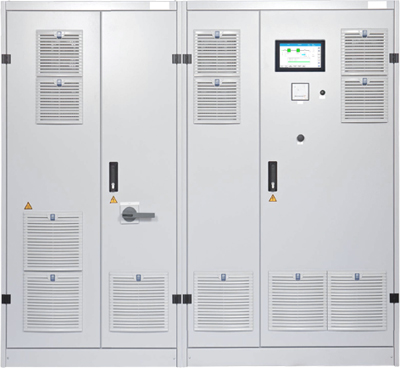
LAB-MOBI
Multiple Output Bidirectional PSU
| Min | Max | |
|---|---|---|
| Power: | 0 to 100kW | 0 to 650kW |
| Voltage: | 0 to 300VDC | 0 to 1200VDC |
| Current: | 0 to ±200A | 0 to ±4000A This maximum is achieved by combining channels in parallel. |
| Standard Control: | Touchscreen HMI, CAN, Ethernet, MODBUS |
|---|---|
| Optional Control: | Analogue, PROFIBUS, PROFINET |
LAB-MOBI systems have 2 or 4 output channels with nominals up to 1200V/1200A. Each channel is programmable for source and load functions. Energy can be recycled between channels above the unit's nominal power.
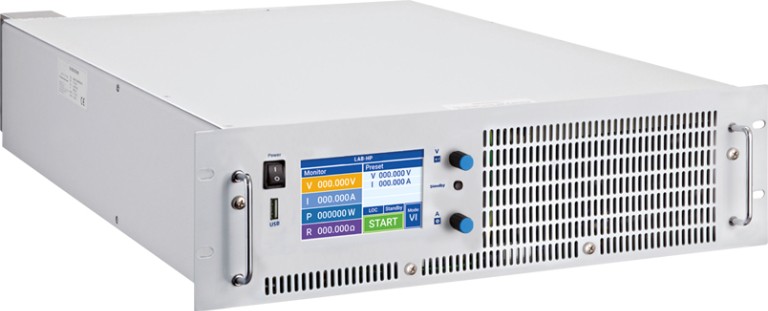
LAB-HP
Compact High Power DC Source
| Min | Max | |
|---|---|---|
| Power: | 0 to 3kW | 0 to 504kW This maximum is achieved by using units in master-slave. |
| Voltage: | 0 to 15V | 0 to 2000V Different nominals can be selected via the options table. |
| Current: | 0 to 4.7A | 0 to 18000A This maximum is achieved by using units in master-slave. |
| Standard Control: | Touchscreen HMI, Ethernet, Isolated Analogue, RS-232 |
|---|---|
| Optional Control: | IEEE 488.2, RS-485, SD Card, USB |
The LAB-HP provides up to 21kW of power in a 3U high case. Output values can be preset and read prior to release. The large touchscreen display indicates all relevant output quantities simultaneously. Each unit has an RS-232 and isolated analogue interface as standard.
Popular Categories
Bidirectional DC
Bidirectional power systems can operate as either a DC source or load. This integrated approach features high dynamics enabling users to switch quickly between quadrants. Both modular systems and high power cabinets are available. When operating as a load each unit has power recycling technology. The inbuilt monitoring system synchronises with the grid and regenerates any excess DC energy back to the three phase mains supply.
DC Sources
ETPS provide one of the most comprehensive selections of programmable DC sources on the market. Virtually any power, voltage or current requirement can be met. Adjustable power and resistance limits are offered in addition to standard CC and CV operation. Besides bench or laboratory units, our DC sources can be rackmounted or built as an ATE system controlled via a remote control interface. Modular designs are available which are easily expandable.
DC Electronic Loads
DC electronic loads mimic the real world operating conditions for a variety of applications. Each unit can be built with analogue and computer interfaces to allow remote operation. LabVIEW drivers are also available for most product families to simplify integration into wider test systems. A comprehensive mix of voltage and current sink ranges are possible. Common operating features include OVP/OCP tests, front panel memory as well as CC, CV, CR and CP modes. In dynamic mode rise, fall and plateau times are adjustable. Grid-tied power recycling loads are available.
Require a custom solution? We can help
Did you know that we do rental units too?
Industry Sectors
Our people are experts at engineering bespoke systems for different industries. Having configured countless safe and compliant technologies, we are experienced leaders of electrical power supply and dynamic testing environments.
Case Studies
View all Case Studies
Aerospace & Defence
Electrification of Aerospace Propulsion
When building a world leading aerospace research lab, the University of Nottingham needed a versatile power system to ensure the facility takes off. Read more

Automotive & Motorsport
The Bloodhound LSR
With hopes of propelling themselves into the history books, Bloodhound LSR needed a power system to streamline their workshop testing. Read more

Automotive & Motorsport
FAST FLEXIBLE PSUs
ETPS's fast and flexible approach to power systems makes us an ideal partner for Intertek Transportation Technologies. Read more

Latest News and Events
View all News and EventsNews Article
High Current Battery Emulators
Do you need emulate ultra-fast dynamics to replicate the real world behaviour of high performance batteries? High current G5-BATSIM-HC modules are now available from SELV models starting at 60V/338A, ranging up to tens of thousands of amps. Read more
News Article
2024 Easter Closing Hours
ETPS Ltd will close for Easter on Thursday 28th March at 17:00 GMT. We re-open on Tuesday 2nd April at 08:00 BST. If you have an enquiry during this period, please use the form on the contact us page or email sales@etps.co.uk. Read more